Rocky Lab Challenge Task Hints
Hints for Task 1 - Project Management
This task illustrates how project access is managed on DECTRIS D.LAB. When adding members to a project, you share the data within including all processing results. Members on the same project will see analysis result processed for that data in their Analysis Overview.
- To complete this task, you need to:
Add three more project members - Change the title of the project
Adding your team members
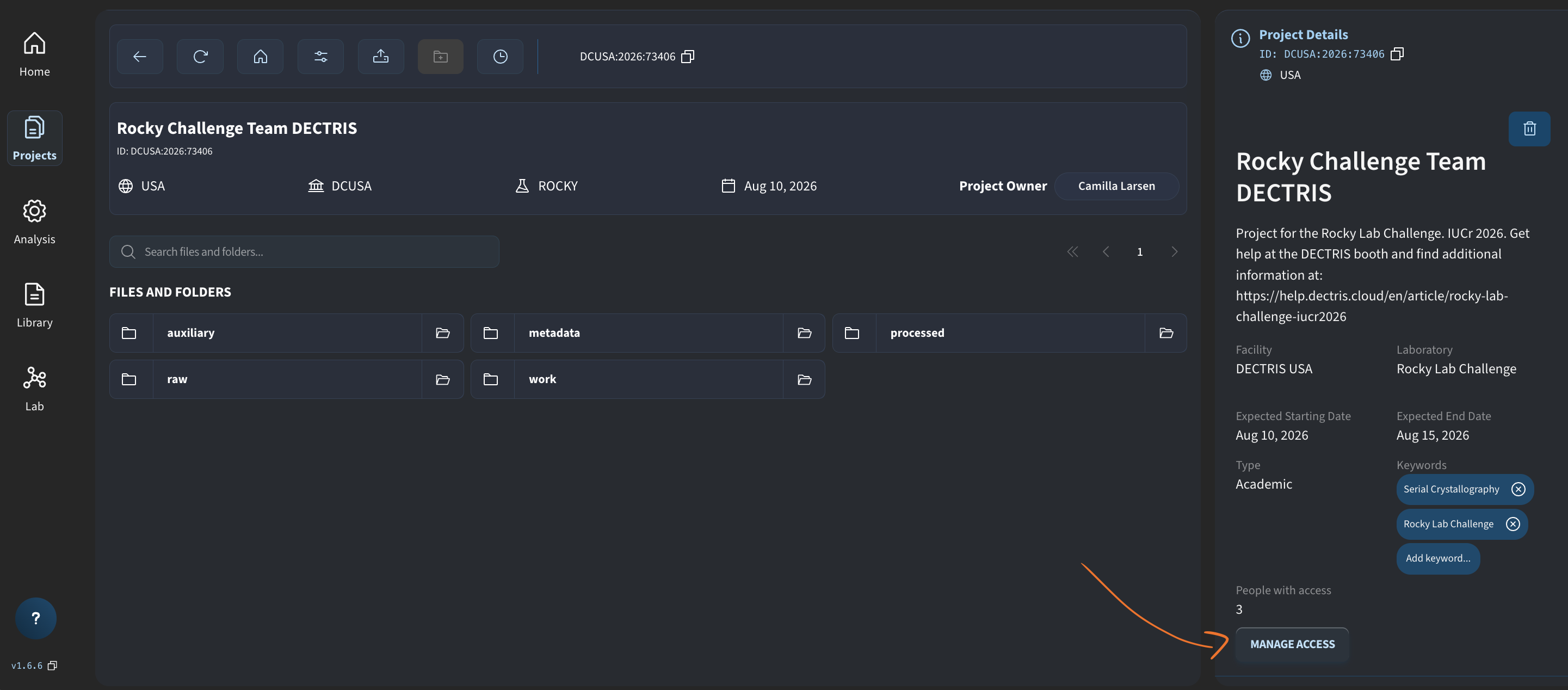
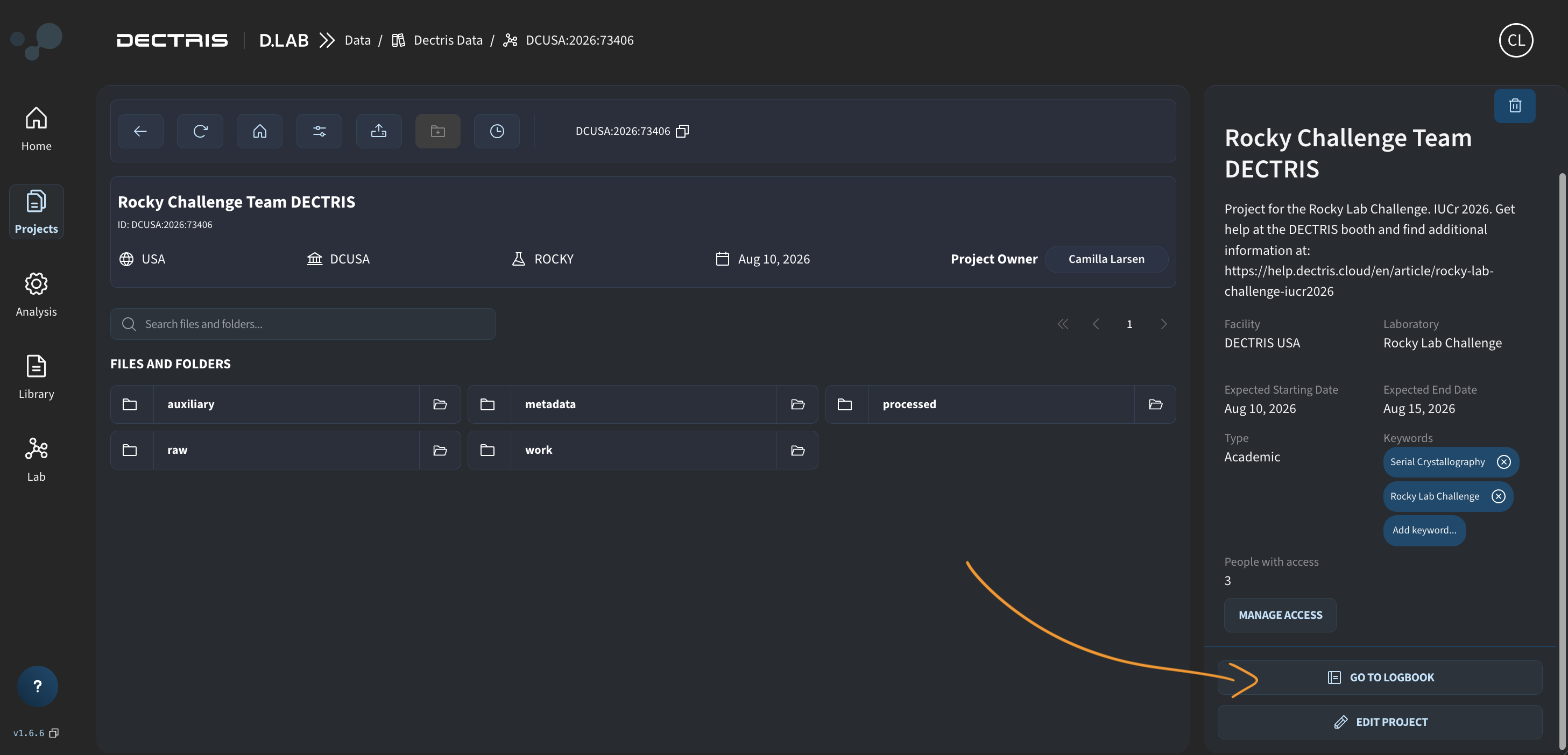
Navigate to your project folder by going to Projects and double clicking on your challenge project. To add team members click on MANAGE ACCESS:
In the pop-up you can add their team members via name (if they already signed up at app.dectris.cloud) or you can invite them via e-mail:
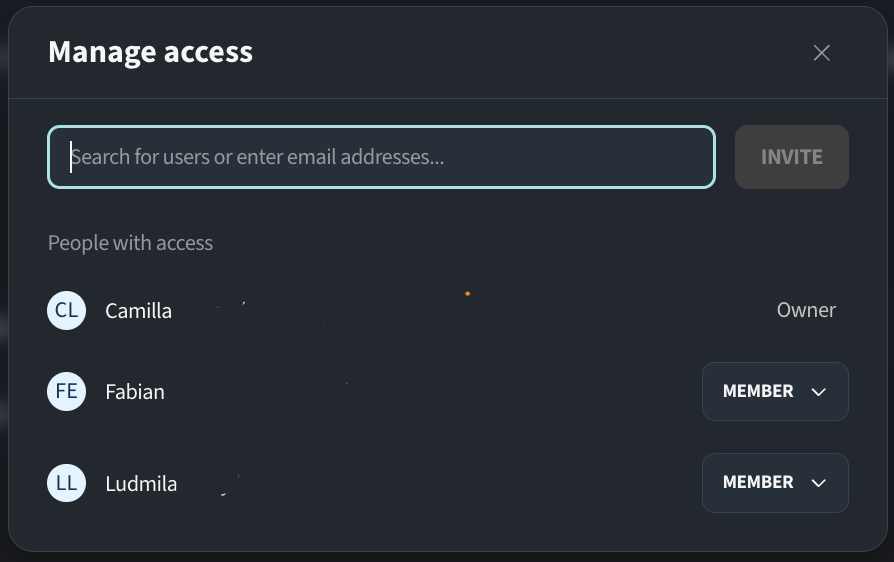
Make sure to add 3 extra people to your project (DECTRIS employees do not count).
Changing your project name
To change the project name, click on the EDIT PROJECT button:
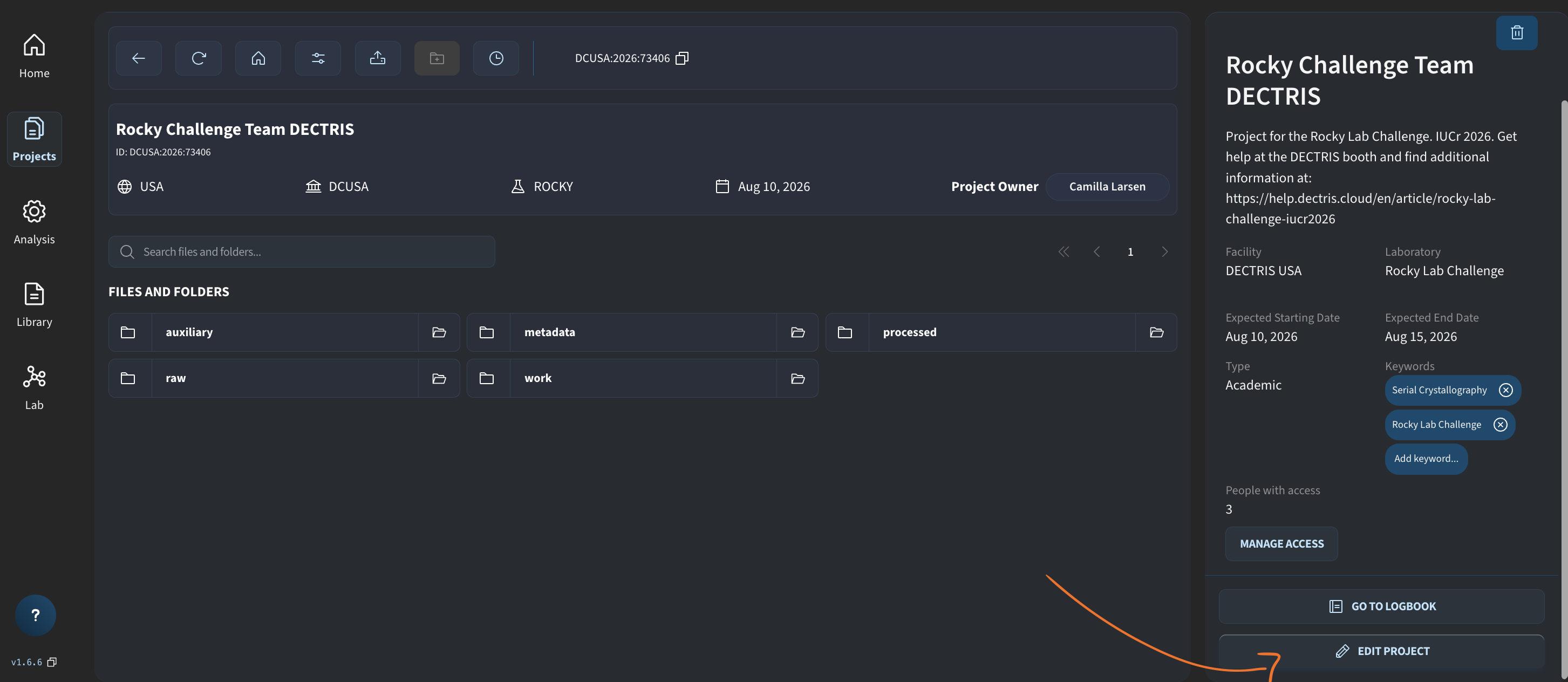
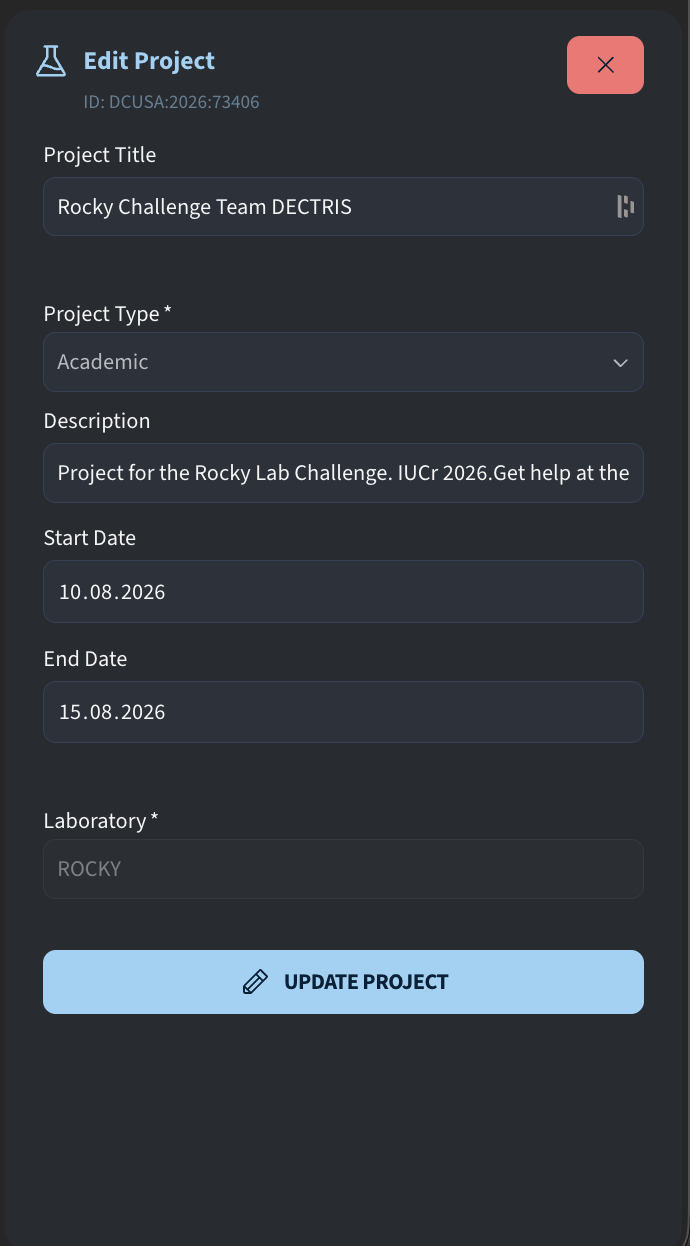
In the opened panel, you can change the project title before clicking UPDATE PROJECT:
Hints for Task 2 - Data Inspection
This task relates to inspecting the data that exists in your project under the folder Lysozyme/raw. The dataset consists of 1000 frames from a larger serial crystallography dataset. To complete this task you need to:
- Take a screenshot from a data frame containing diffraction spots
- Insert the image into your project logbook
Viewing the data
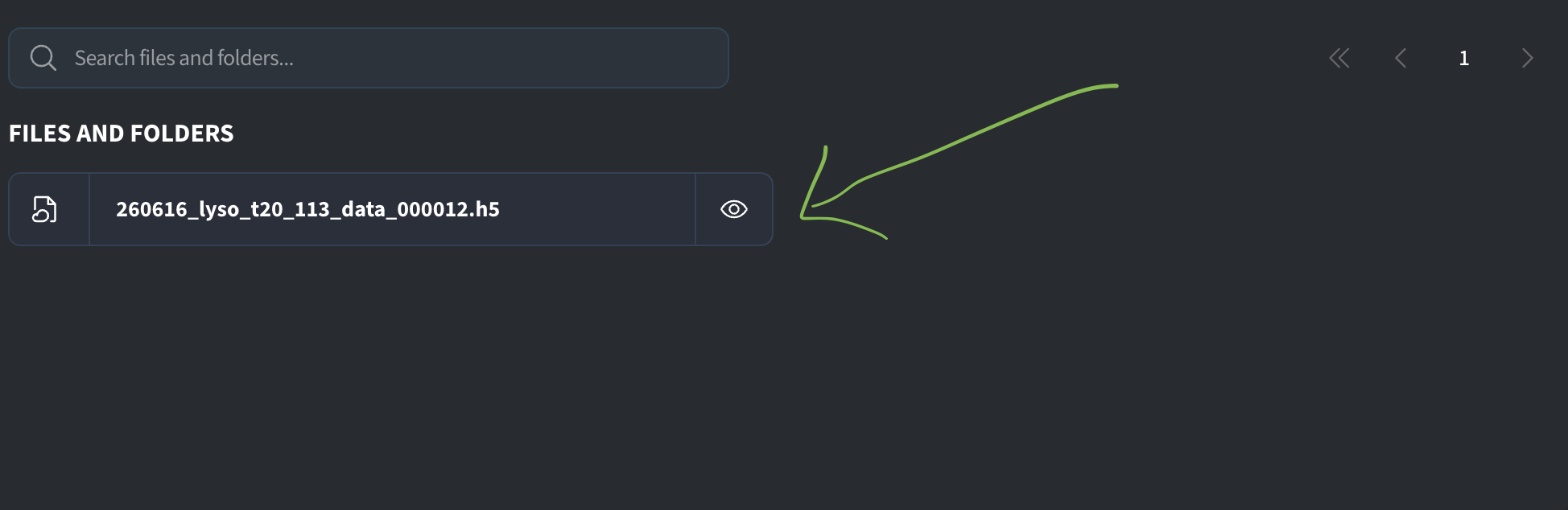
One way of viewing the data is to use the built in h5-viewer in the web app. Navigate to the dataset in your project under Lysozyme/raw. Click on the small eye icon next to the h5 files to open the h5-viewer:
Once the h5-viewer is open, you may not immediately see the image, but instead see a message "No visualization available for this entry". This is because you need to navigate to the dataset within the h5 structure.
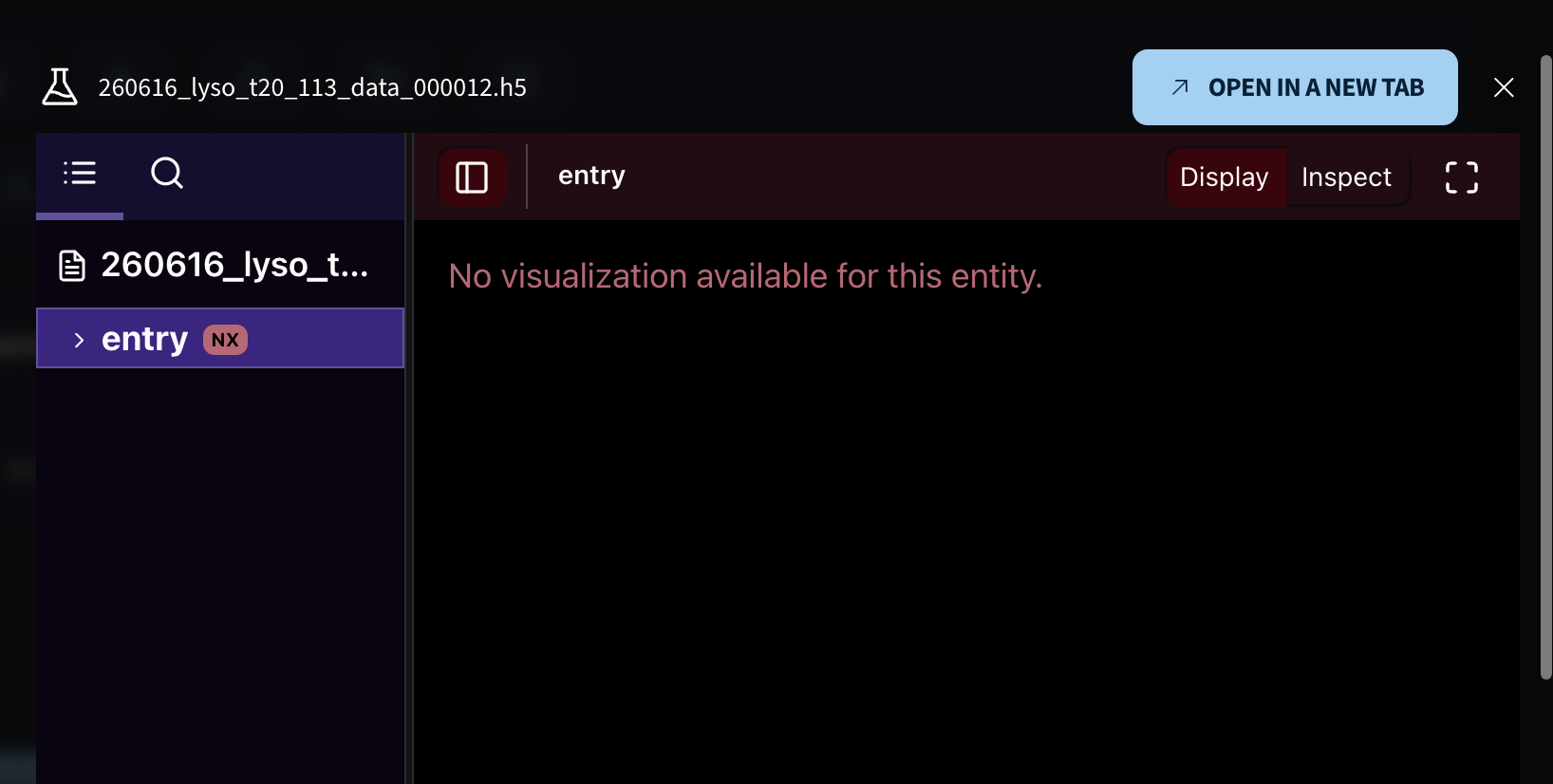
Go into the entry dropdown, go into the data dropdown and finally choose data:
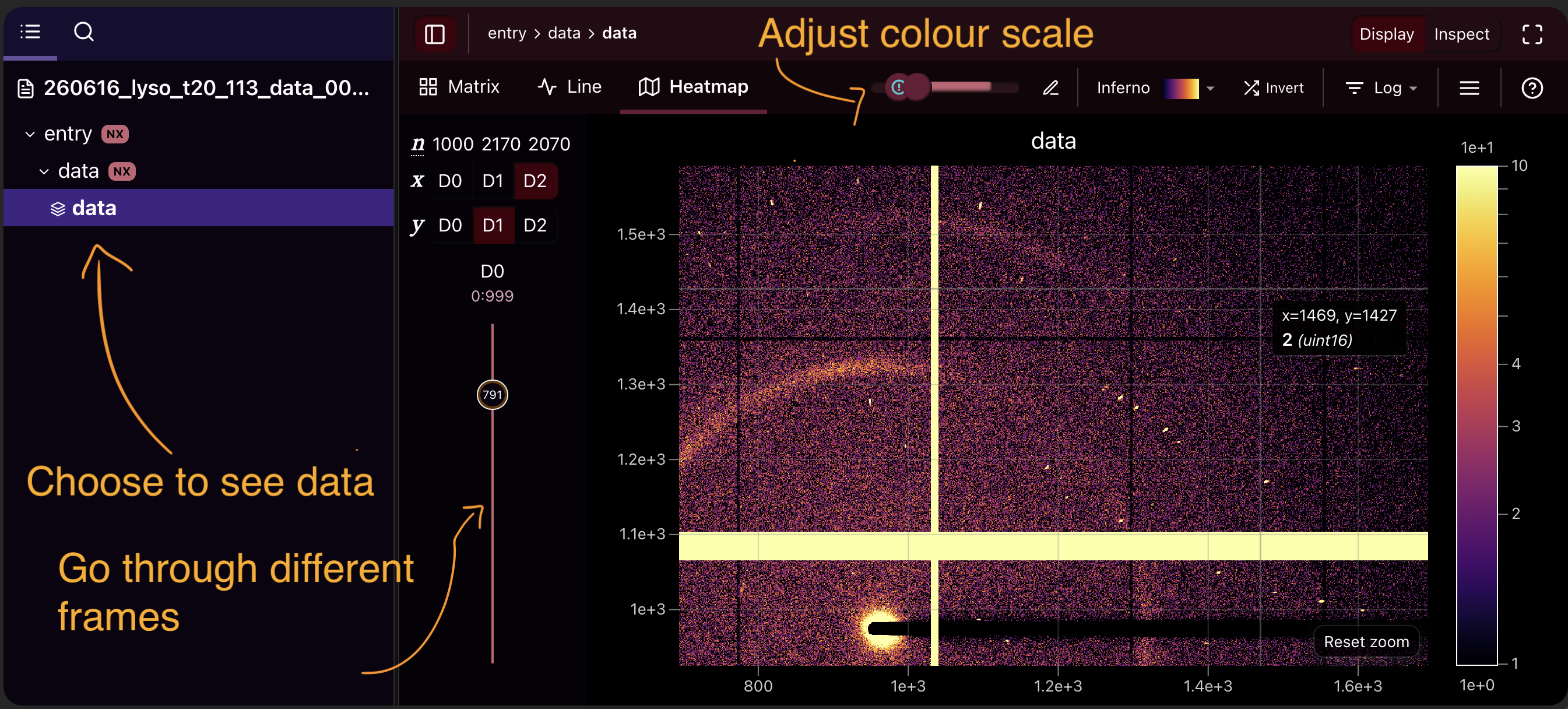
Note that you can use the slider on the left to go through the different frames. You can also adjust the colour limits at the top of the image.
Inserting an image into your project logbook
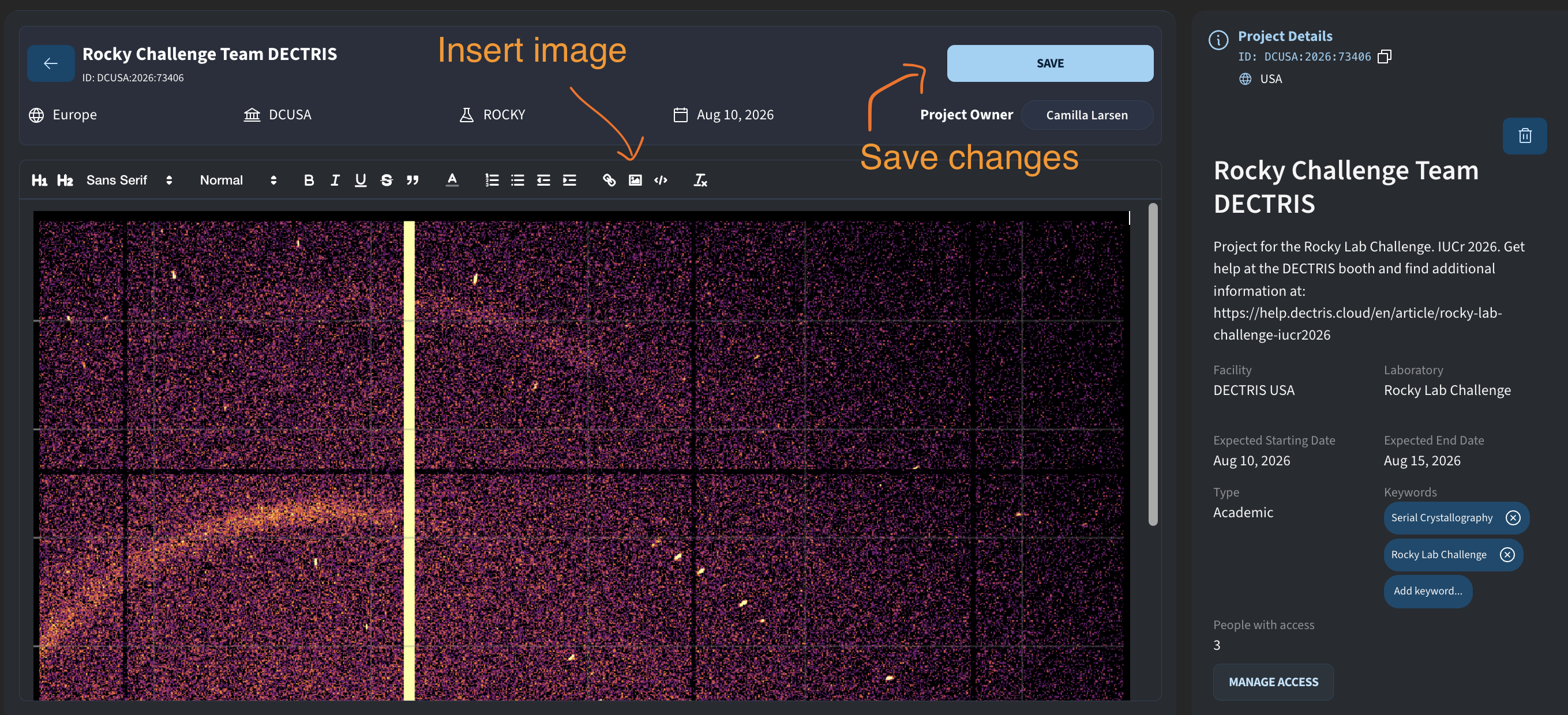
Navigate to your project folder by going to Projects and double clicking on your challenge project. Go to the logbook by clicking GO TO LOGBOOK.
Inside the logbook, you can upload your screenshot. Remember to hit SAVE before leaving the page.
Hints for Task 3 - Indexation Rescue
In this task you will experience how reproducible re-runs are enabled on DECTRIS D.Lab. In your analysis overview, you will find a CrystFEL indexamajig result that did not manage to find any patterns. Your job is to re-run the job with correct parameters.
How to re-run a job
To re-run the job go to your Analysis Overview and click the re-run button (small fan icon) on the CrystFEL indexamajig job:
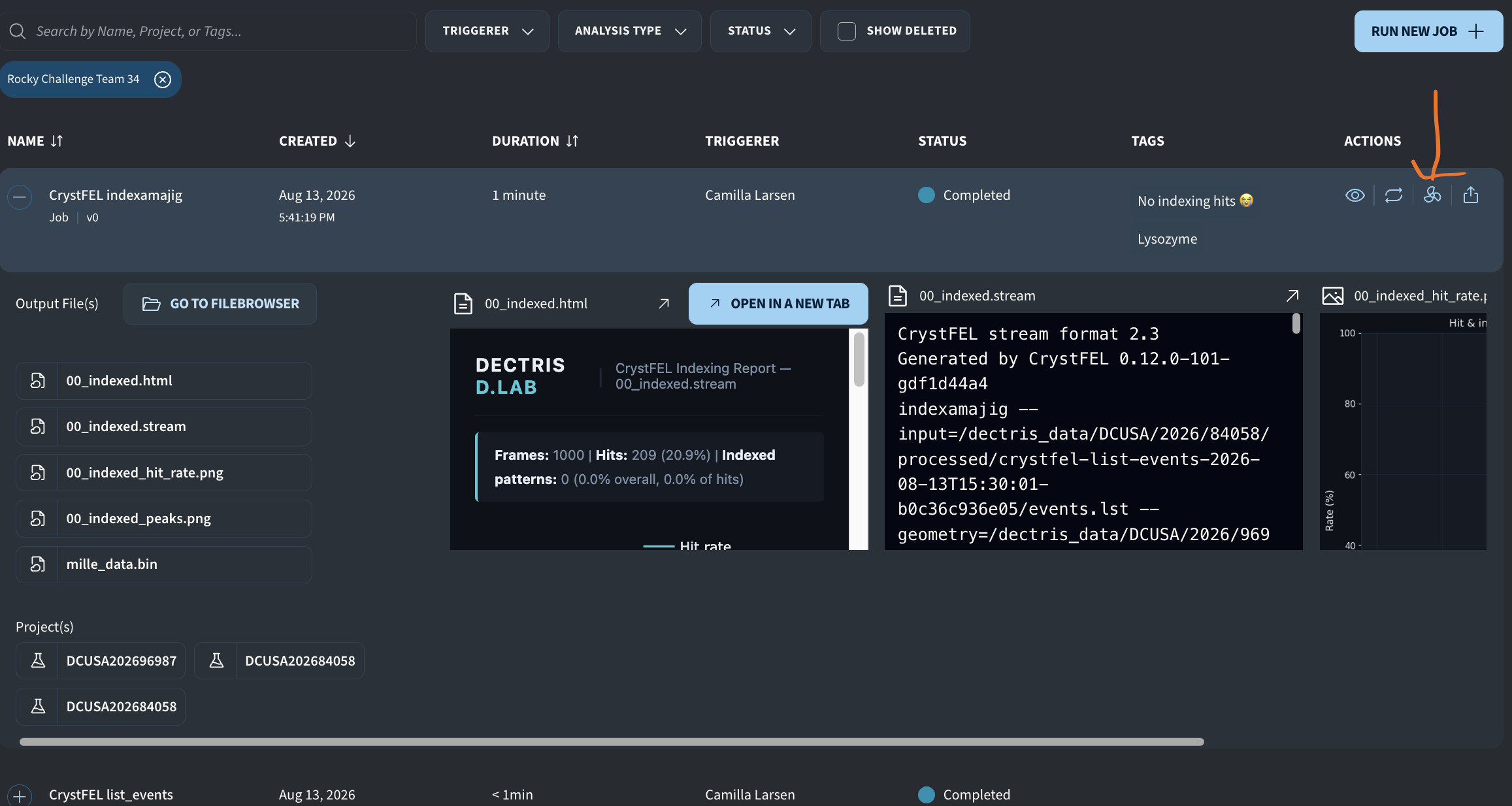
This brings you to the re-run workflow, where you can iterate on the previous jobs. You do not need to adjust any of the input files, instead go to 2. Parameters and click on Show Advanced to see all possible parameters you can change:
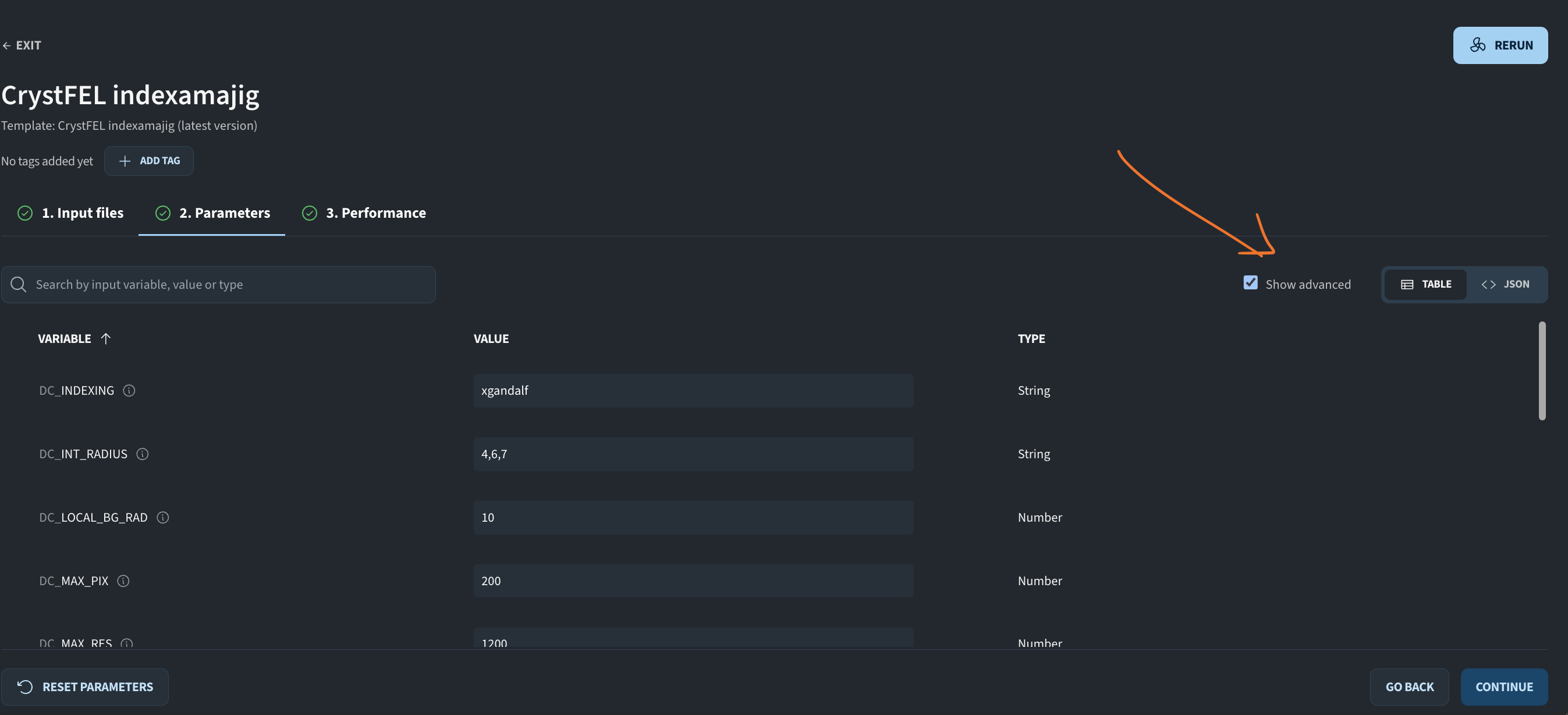
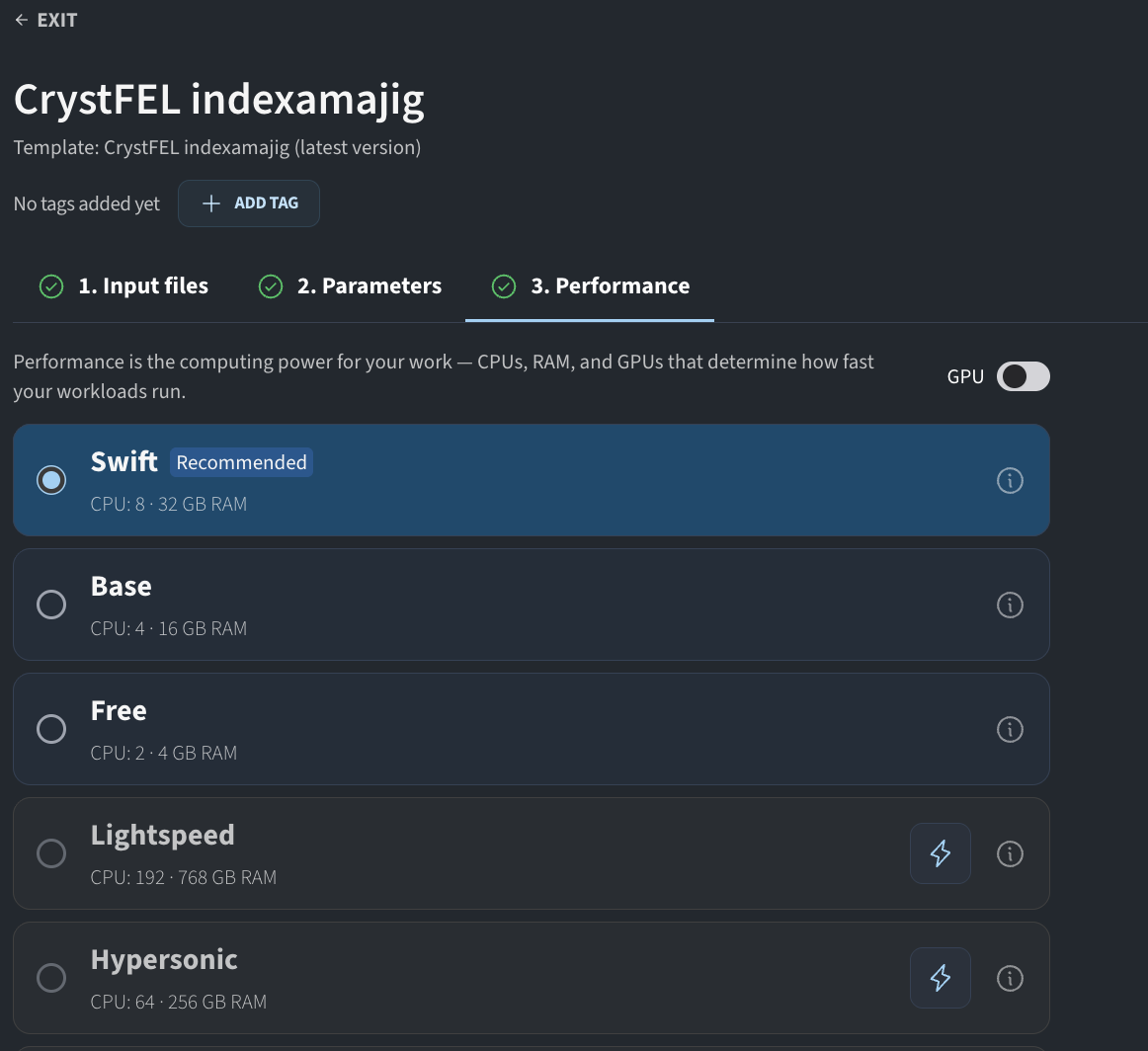
Once you have changed the parameters you are interested in changing, go to the 3. Performance tab. Here you can choose the machine type (ie number of CPUs) you want to use for your analysis task. We recommend you choose the machine SWIFT, which has 8 CPUs available:
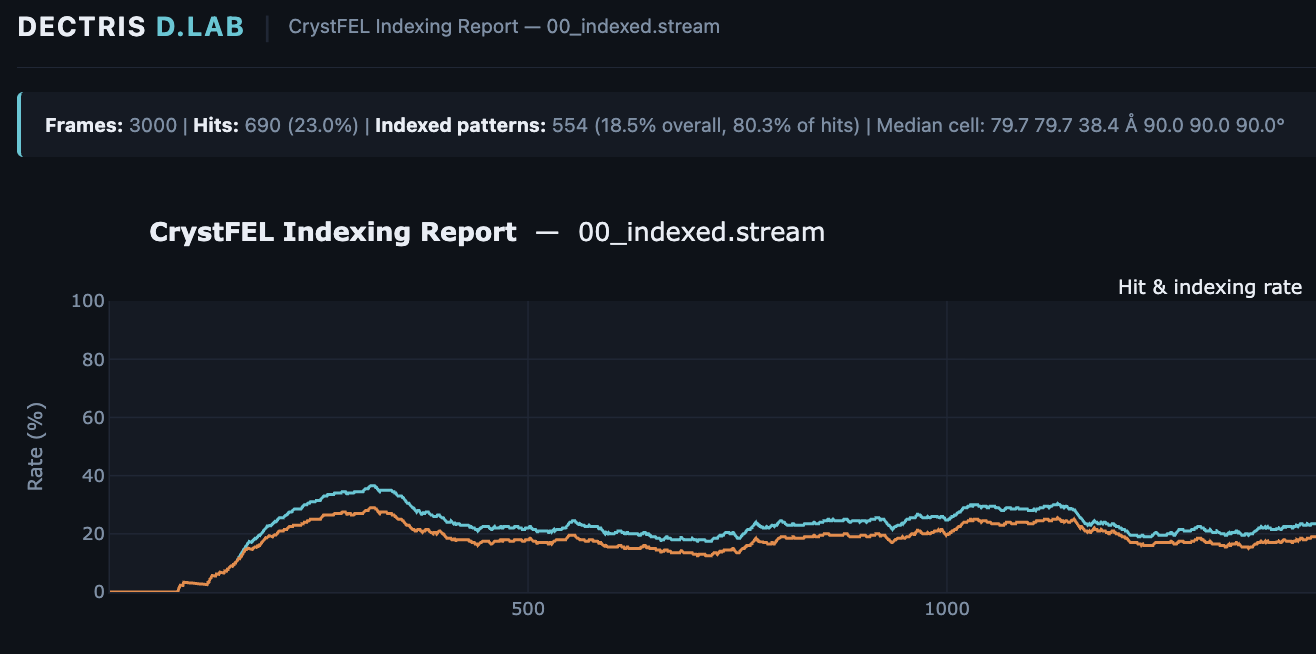
Once you have chosen the re-run job click on the RERUN JOB button to submit the job, The job will go into a pending state for a few minutes until a node has been recruited. Wait for your job to finish and see if you managed to improve the indexation. You can see that you got hits when the number of indexed patterns is larger than 0 and you see two curves in the indexing report:
What parameter to change ?
Maybe look more into the tolerance of the cell parameters? If you need more help, come to the DECTRIS booth 🙂
Leaving comments and tags
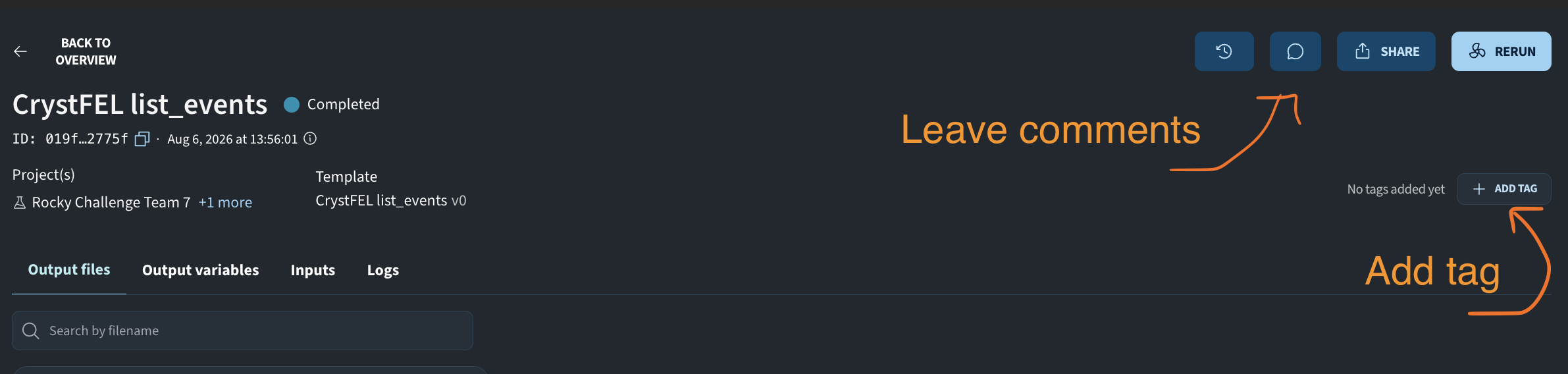
To leave a comment on your job, click on the speech bubble on the job details page. To add a tag, click on the add tag button to the right on the job details page:
Hints for Task 4 - Science Dissemination
Be creative 🙂 ! Take an interesing picture and share.