
Project Lab Notebook
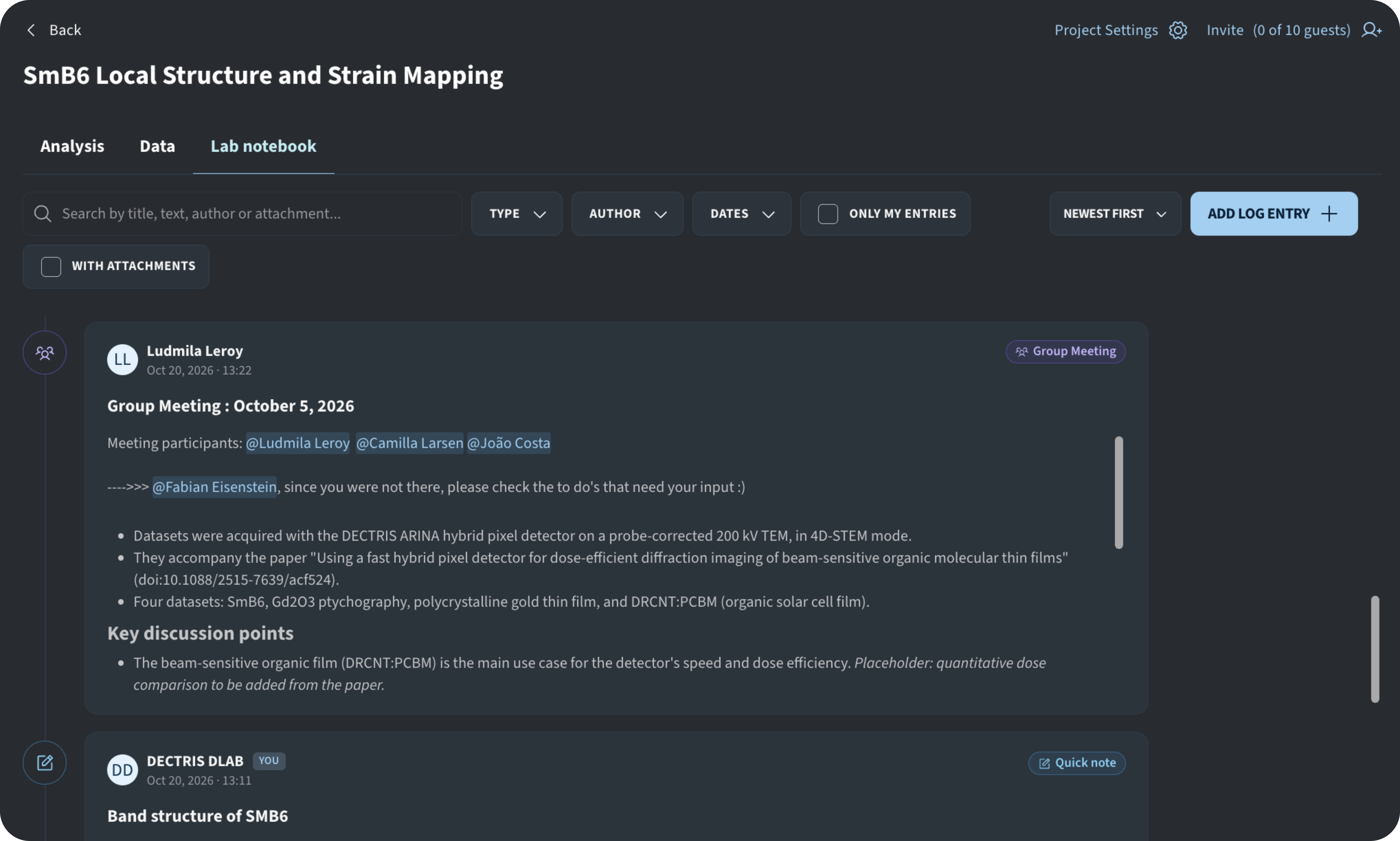
Inside every D.LAB project, the Lab notebook tab sits right alongside Analysis and Data. Instead of keeping sample details in a paper binder, meeting decisions in a separate document, and analysis notes in personal files, the Lab notebook keeps all your scientific context organized right inside the project, with the option to link entries directly to specific jobs or session runs.
Whether you are recording sample preparation steps before a beamtime, capturing group meeting action items, or documenting why a particular simulation parameter was chosen, your log entries ensure that critical knowledge stays accessible to the entire team even after students graduate or collaborators move on.
Built for Safe, Collaborative Note-Taking
Traditional shared documents make it easy for team members to accidentally overwrite each other's notes or lose track of who changed what. The D.LAB Lab notebook is structured as a chronological feed of individual, timestamped log entries:
- No risk of overwriting: Every team member adds their own log entries to the shared timeline, so nobody can accidentally alter or erase a colleague's notes.
- Connect notes directly to runs and people: Inside any log entry, you can type
@to mention a teammate, or type#to link directly to a specific job or session run within the project. - Rich formatting and attachments: Format notes with headings, bold or italic text, lists, links, and inline images (up to 2.00 GB each) directly to an entry.
Categorizing Log Entries by Type
Every log entry is assigned a Type so your team can organize different kinds of scientific work without slowing down daily note-taking:
Entry Type | Best Used For |
Quick note | Fast, free-text thoughts with no required fields. This is the default option and can be classified later or left as is. |
Group Meeting | Discussions and action items that typically span multiple samples or analyses. |
Sample | Core sample details, including identity, origin, batch, geometry, and characterization. |
Wet Lab | Bench work as performed, such as solutions, handling steps, and lot numbers. |
Chem Lab | Synthesis and reaction records, including routes, precursors, conditions, and yields. |
Experiment | Measurements and simulations, capturing the instrument or solver, settings, and conditions. |
Data analysis | Analysis methods, script or software versions, parameter choices, and links to results. |
Data upload | Records of imported datasets, such as dataset URIs, file counts, sizes, checksums, and source instruments. |
How to Add a Log Entry
- Open your project and select the Lab notebook tab.
- Click Add Log Entry in the upper-right corner.
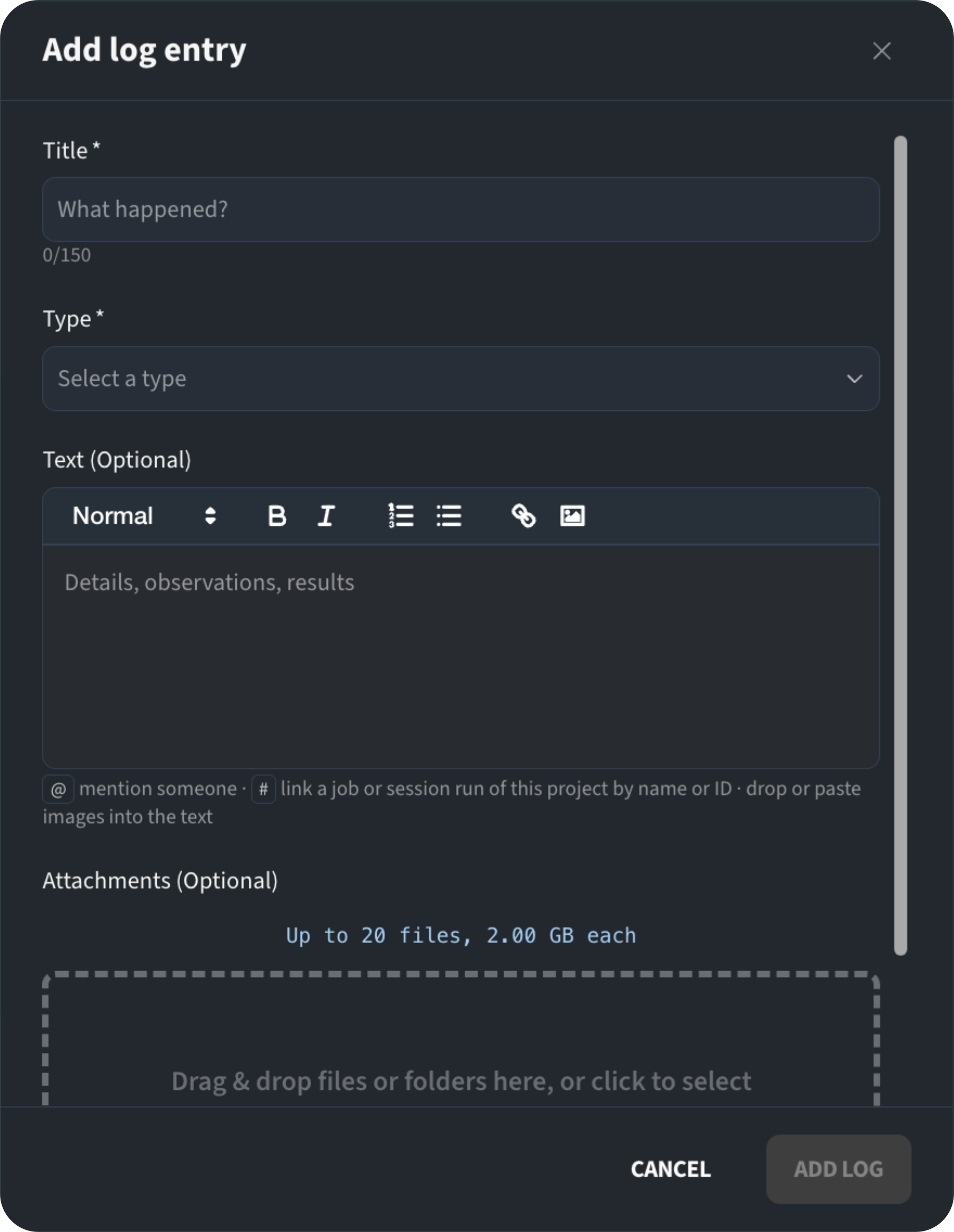
- Enter a descriptive Title (up to 150 characters) summarizing what happened.
- Choose a Type from the dropdown menu.
- (Optional) Add details, observations, or results in the Text editor. Use
@to mention collaborators,#to link a project job or session run by name or ID, or drop and paste images directly into the text. - (Optional) Drag and drop files or folders into the Attachments area.
- Click Add Log to publish the entry to the project feed.
Finding and Filtering Log Entries
As a project grows over months or years, you can quickly isolate the exact context you need using the controls at the top of the Lab notebook tab:
- Keyword Search: Search across entry titles, body text, authors, and attachments.
- Filter by Type: View only specific categories, such as all Data analysis entries or all Sample records.
- Filter by Author or Date: Narrow the feed down to log entries written by a specific team member or within a particular date range.
- Quick Toggles and Sorting: Check Only my entries or With attachments to refine your view, and change the sort order (such as Newest first).
Permissions, Editing, and Deleting
To keep project records both collaborative and trustworthy, access to the Lab notebook follows your project's role-based permissions:
- Who can add log entries: Any user with the Member role or above can create new log entries. Users with the Viewer role can read and search the Lab notebook but cannot add entries.
- Editing and deleting log entries: You can edit or delete a log entry at any time if you need to update results or fix a typo. To protect the integrity of your group's scientific record, you can only edit or delete log entries that you created yourself.